6.13 SAMPLE BROWSER
6. INTERACTING WITH TONVERK > 6.13 SAMPLE BROWSER · PDF p. 25–28 · OS 1.4.1
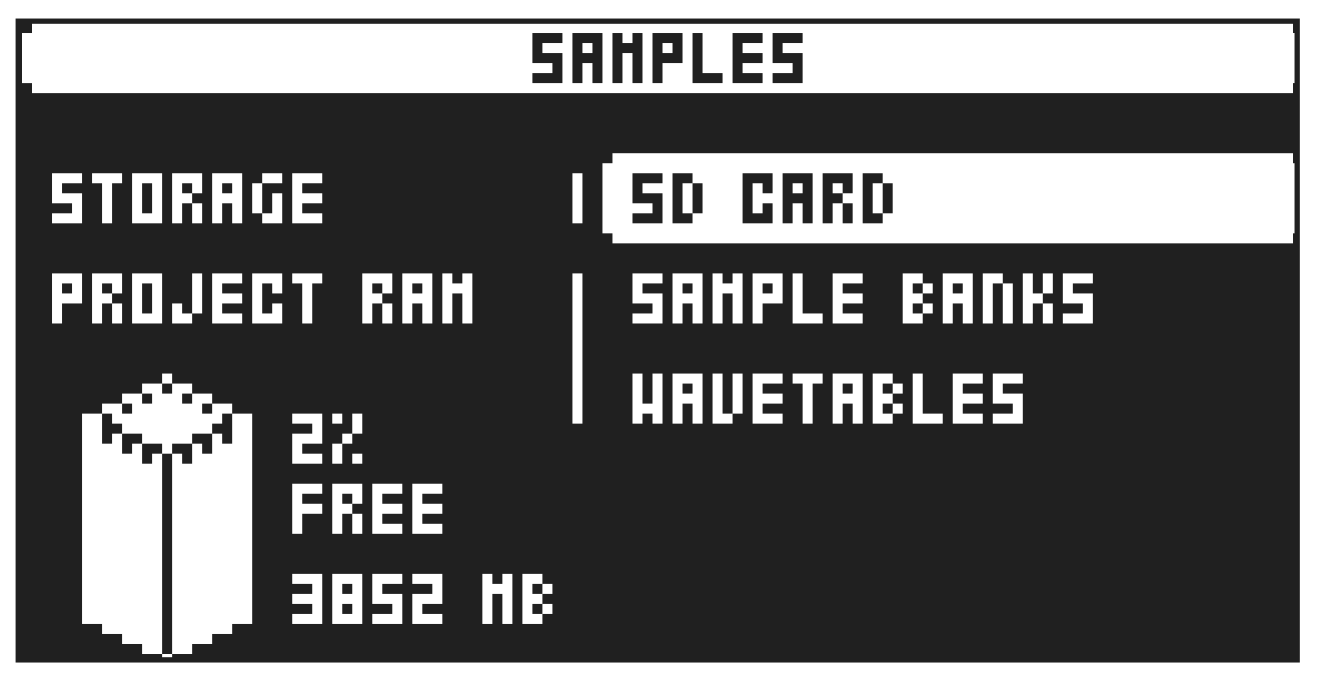
The Sample browser lets you to view and access samples, wavetables and other content, stored on the SD card. Here you can also see how much sample memory is being used in the current project, shown both in megabytes and as a percentage of the available RAM. You can load up to 4 GB of samples into the project’s RAM, with a maximum of 1,023 sample slots available.
Press [FUNC] + [SAMPLING] to open the Sample browser.
6.13.1 SD CARD
The option lets you browse the contents on the SD card. Use [UP]/[DOWN] or LEVEL/DATA to scroll through the items. Press [YES] or [FUNC] + [RIGHT] to enter the highlighted directory. To exit a directory and back one step up in the directory structure, press [NO] or [FUNC] + [LEFT]. Press and hold [NO] to exit a directory and return to the top of the directory structure. Press [FUNC] + [NO], to exit the Sample browser.
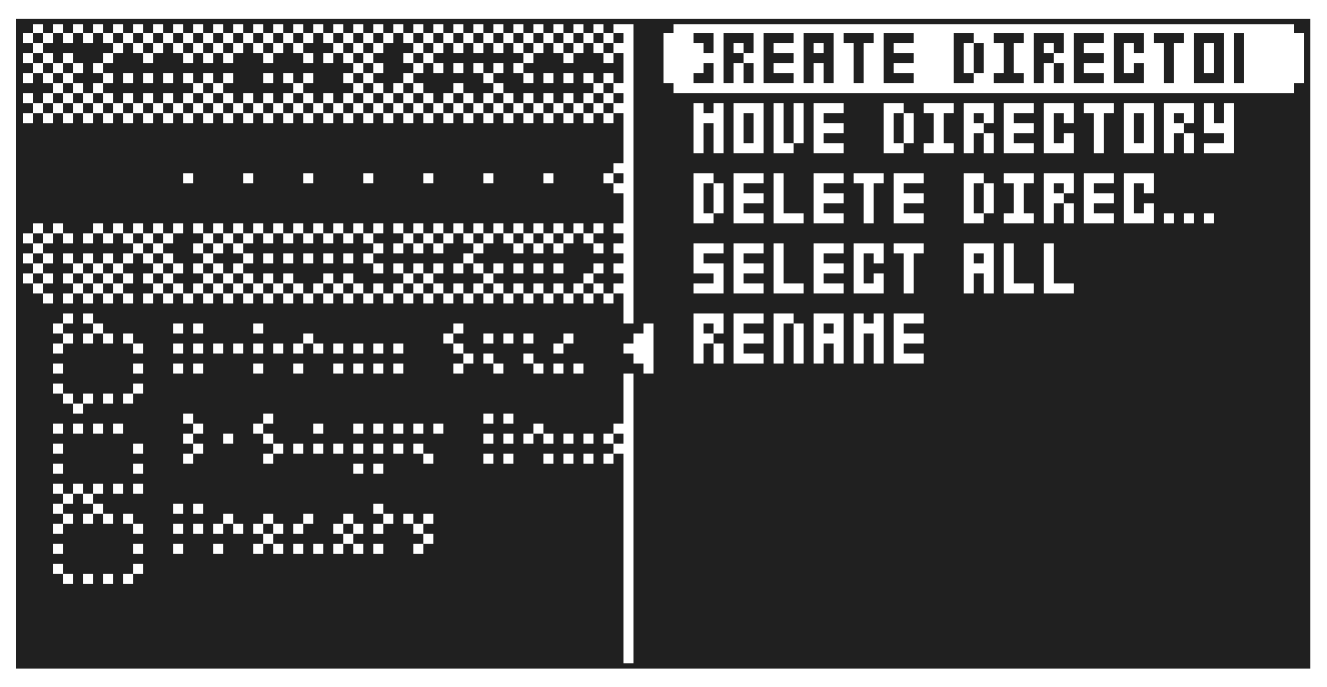
Press [RIGHT] to access the OPERATIONS menu. The available operations will affect the highlighted file or folder, depending on the type of the highlighted item. Press [YES] to apply the commands to the selected sample. Press [NO] or the [LEFT] arrow key to exit the menu.
CREATE DIRECTORY creates a new directory/folder at the same level in the file structure. Use the NAMING screen to name the new directory. For more information, please see “6.7 THE NAMING SCREEN” on page 23.
MOVE DIRECTORY moves the highlighted directory to a different location in the file structure. Press [YES] to select the highlighted item that you want to move, then press [YES] again to access the folder structure. Open the target folder where you want to move the item, and then select MOVE HERE and press [YES].
DELETE DIRECTORY deletes the selected directory and all its contents.
SELECT ALL selects all files (but not the folders or files inside any folders in the current directory) in the current directory.
RENAME opens a NAMING screen where you can rename the selected item.
MOVE FILE moves the highlighted file to a different location within the file structure. Press [YES] to select the highlighted directory that you want to move, then press [YES] again to access the folder structure. Open the target folder where you want to move the item, and then select MOVE HERE and press [YES].
DELETE FILE deletes the selected file.
LOAD SAMPLES loads the selected sample(s) to the sample pool of the active project.
LOAD WAVETABLES loads the selected wavetable(s) to the wavetable pool active project.
You can load up to 1023 samples and up to 127 wavetables to each project.
- We recommended that you save and add content only to the USER folder on the SD card. This folder also contains the default destinations for saving projects, presets, samples, and instruments.
- If you delete or move samples (or a folder containing samples) on the SD card, it will affect all projects that use the deleted or moved samples, and the samples will be missing from these projects.
- The write-protect switch on the SD card must be set to OFF if you want to write to the card.
6.13.2 SAMPLE BANKS
This option opens the Sample Pool of the active project. Here, you can interact with the samples already loaded into the project’s RAM. Press [YES] to select the sample(s) you want to interact with. For more information please see “5.2.6 THE SAMPLE AND WAVETABLE POOLS” on page 20.
Press [RIGHT] to access the OPERATIONS menu. The available operations will affect the highlighted samples. Press [YES] to apply the commands to the selected sample(s). Press [NO] or [LEFT] to exit the menu.
REPLACE lets you replace a sample currently loaded in the project’s RAM. When you select this option, the browser opens so you can navigate the SD card and locate the sample you want to use instead.
Press [YES] to replace the current sample with the selected one.
SELECT ALL selects all the samples in the Sample Pool.
SELECT UNUSED selects all the samples in the Sample Pool that are not used in any of the project’s patterns.
DESELECT ALL selects all the selected samples in the Sample Pool
UNLOAD removes the selected samples from the Sample Pool. If no samples are selected, this command will removes the highlighted sample. The samples will not be removed from the SD card.
6.13.3 WAVETABLES
This option opens the Wavetable Pool of the active project. Here, you can interact with the samples already loaded into the project’s RAM. Press [YES] to select the wavetable(s) you want to interact with. For more information please see “5.2.6 THE SAMPLE AND WAVETABLE POOLS” on page 20.
Press [RIGHT] to access the OPERATIONS menu. The available operations will affect the highlighted wavetables. Press [YES] to apply the commands to the selected wavetables. Press [NO] or [LEFT] to exit the menu.
REPLACE lets you replace a wavetable currently loaded in the project’s RAM. When you select this option, the browser opens so you can navigate the SD card and locate the wavetable you want to use instead. Press [YES] to replace the current wavetable with the selected one.
SELECT ALL selects all the samples in the Wavetable Pool.
SELECT UNUSED selects all the samples in the Wavetable Pool that are not used in any of the projects patterns.
DESELECT ALL selects all the selected samples in the Wavetable Pool UNLOAD removes all selected wavetables from the Wavetable Pool. If no wavetables are selected, this command will remove the highlighted wavetable. The wavetables will not be removed from the SD card.