13. SETTINGS MENU
13. SETTINGS MENU · PDF p. 72 · OS 1.12
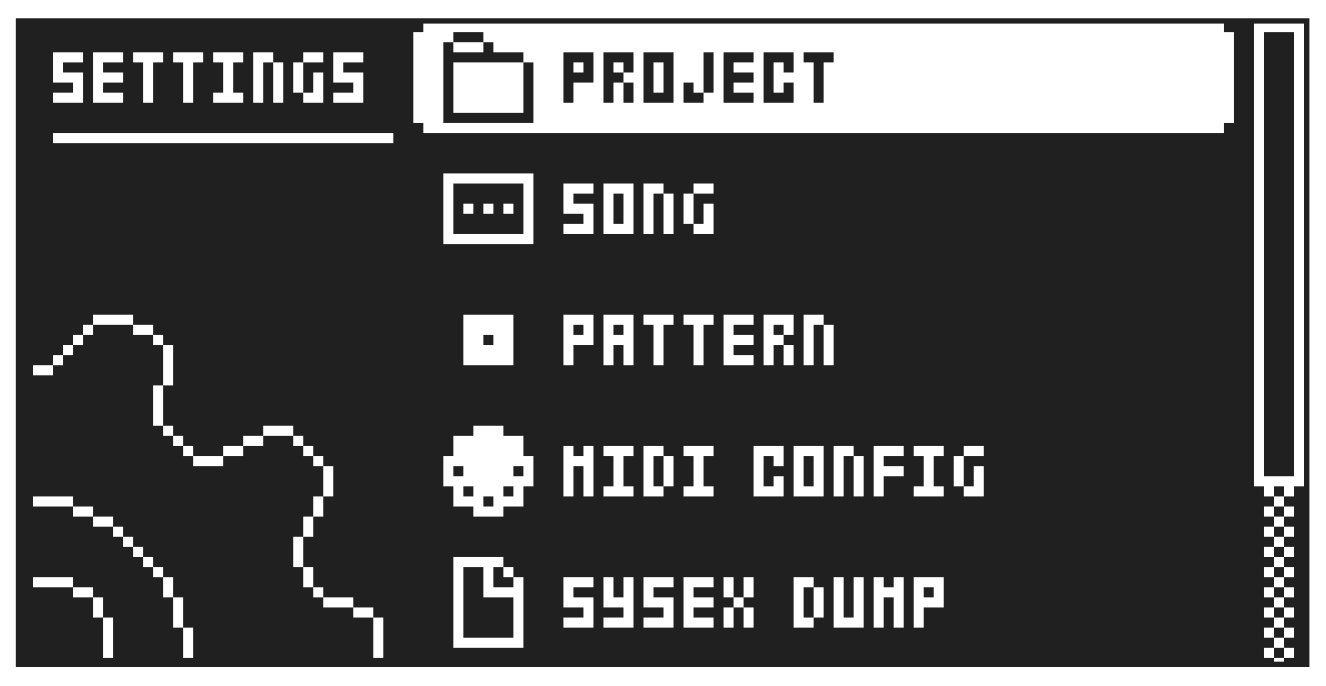
The SETTINGS menu offers settings that affect Digitone II and can also be used to manage Projects.
Press [SETTINGS] to access the SETTINGS menu. Scroll the list by using [UP]/[DOWN] or the LEVEL/ DATA knob. Open a highlighted menu by pressing [YES].
13.1 PROJECT
13.1.1 LOAD PROJECT
Load Project opens a project selection screen where you can choose a project to load. If you wish to create a new project, select CREATE NEW at the very bottom of the list. The new project will be a blank slate.
If you load a new project it will replace the active project. Be sure to save your active project before you load another project.
13.1.2 SAVE PROJECT AS
Save Project opens a project selection screen where you choose a slot to save the active project to. You can also press [FUNC] + [SETTINGS] to save and overwrite the current project.
13.1.3 MANAGE PROJECTS
Manage Projects launches the PROJECT MANAGER menu. Selecting a project in this menu and pressing the [RIGHT] arrow key will bring up a list of commands.
- CLEAR Resets the project slot to a clean state.
- DELETE Removes the project from the slot.
- RENAME Opens a NAMING screen where you can rename the project file.
- LOAD FROM Loads the selected project. This will replace the active project!
- SAVE TO Saves the active project to the selected slot.
- TOGGLE Toggles write protection on or off. Write protected projects cannot be overwritten, renamed or erased. A lock symbols in front of the project name shows that the project is write protected.
- INIT NEW Initializes an empty file slot with a clean project. This option is only available for empty project slots.
- PURGE ALL Purges (removes) all presets from the pool that are not used in any pattern in the project from the RAM memory. The presets are not removed from the +Drive library. This option is only available when you select the currently loaded project.