14.8 SYSTEM
14. SETTINGS MENU > 14.8 SYSTEM · PDF p. 83–85 · OS 1.17
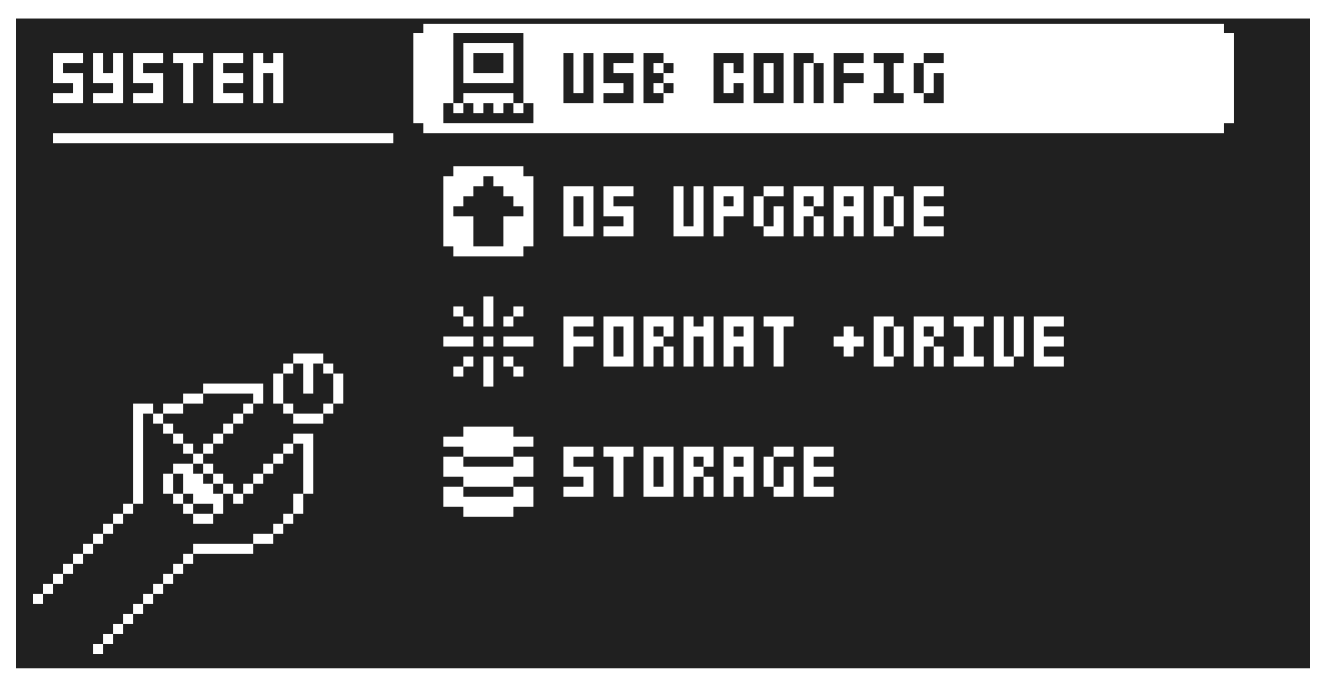
The System menu contains a number of system related settings for the Digitakt II.
14.8.1 USB CONFIG
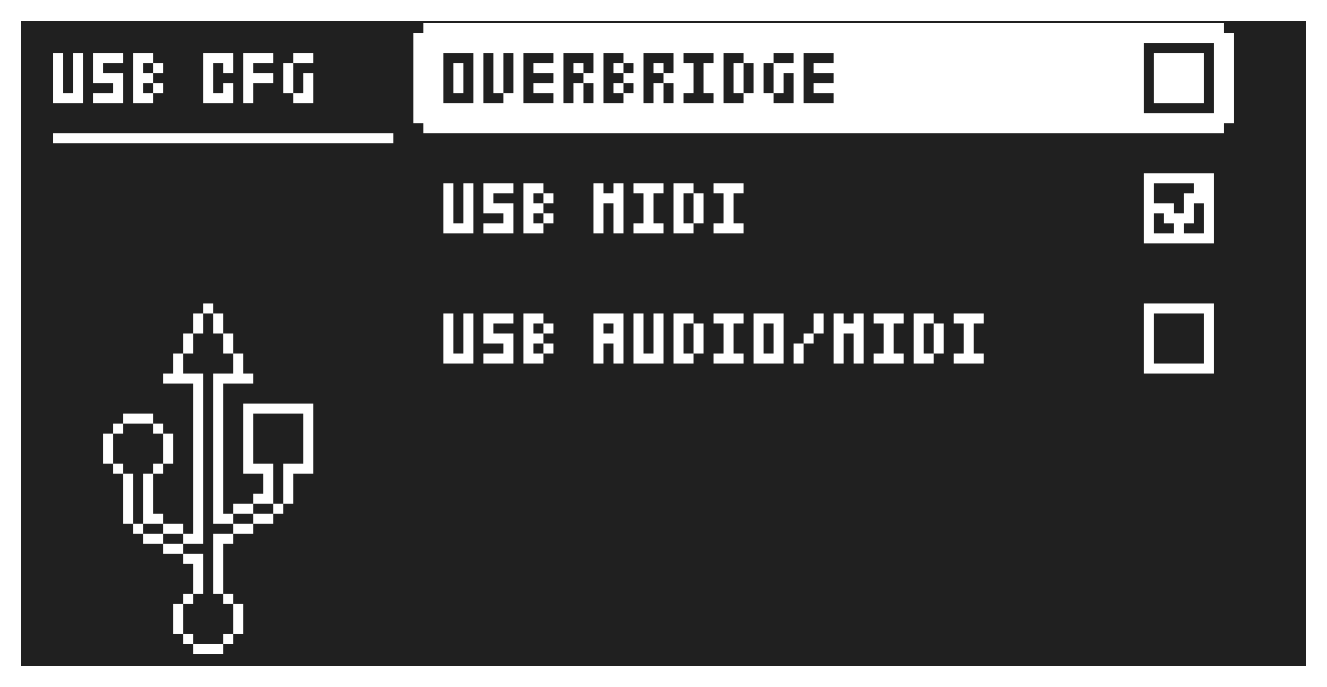
Here you find settings related to USB audio and MIDI. Selecting one mode disables the other two modes.
OVERBRIDGE enables Overbridge functionality. For more information, please see “6.6 OVERBRIDGE” on page 20.
USB MIDI select this option if you wish to send and receive MIDI over USB.
USB AUDIO/MIDI sets the Digitakt II to send and receive audio and MIDI over USB. Select this option if you want to use the Digitakt II together with a class compliant USB audio host.
14.8.2 OS UPGRADE
Use this menu option when you want to upgrade the Digitakt II OS. To send the OS file, use our free Elektron Transfer software. Elektron Transfer can be downloaded from the Elektron website. The device sending the OS file must be connected to the USB port of Digitakt II.
Please note that the Digitakt II will not appear as an icon on your computer desktop.
- Download the Digitakt II OS file from the Elektron website.
- Connect the Elektron device to the computer via USB.
- Open the Transfer application on your computer.
- On the Transfer CONNECTIONS page, set the MIDI IN and MIDI OUT ports to your Elektron device.
- On the Transfer DROP page, drag and drop the OS file. The OS file is then automatically transferred to the Elektron device and the OS update initiates. A progress bar is visible on device screen when receiving the OS.
- On your device. Press [YES] to confirm the OS update.
When the update is done, the Digitakt II will reboot.
14.8.3 FORMAT +DRIVE
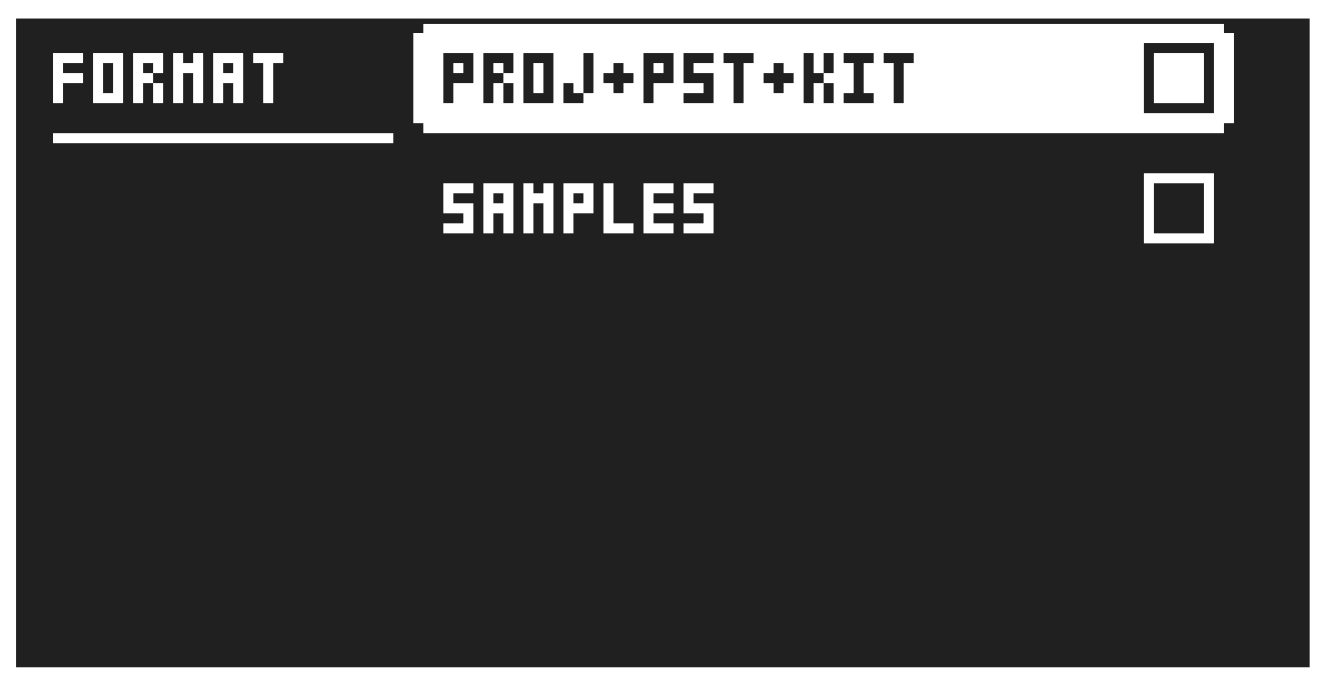
You have the possibility to erase all content of the +Drive. Once you have made your choices using the [LEFT]/[RIGHT] keys and confirmed by pressing [YES], a prompt will appear asking if you want to execute the formatting procedure. Press [YES] to proceed with the formatting.
PROJ+PST+KIT Erases all projects, presets, and kits.
SAMPLES Erases all samples.
The factory samples can not be erased and they do not take up any of the 20 GB user space on the +Drive.
14.8.4 STORAGE
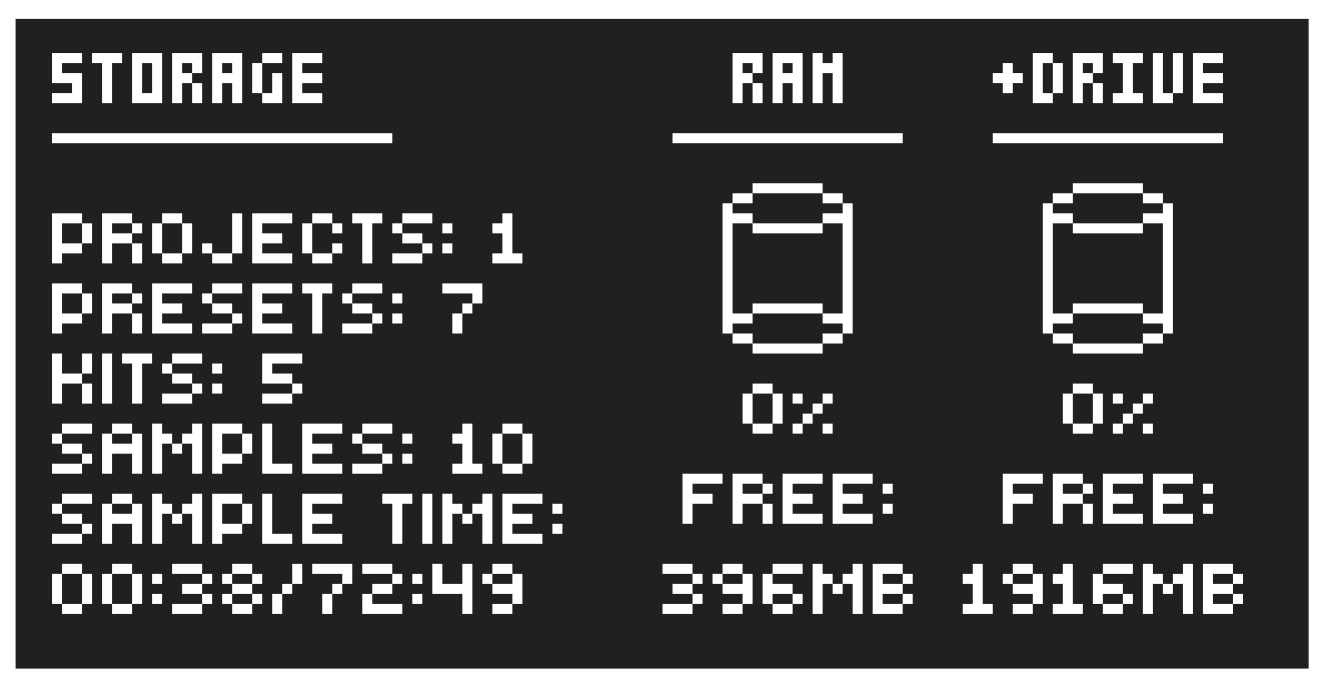
Here you get an overview of what is stored in the RAM and the +Drive and how much memory that is available. Other than the number of Projects, presets, kits, and samples, and you also see the amount of sample time used and remaining. On the right, you see the memory usage of the RAM and the +Drive.