13.7 PERSONALIZE
13. SETTINGS MENU > 13.7 PERSONALIZE · PDF 第 78–80 · OS 1.12
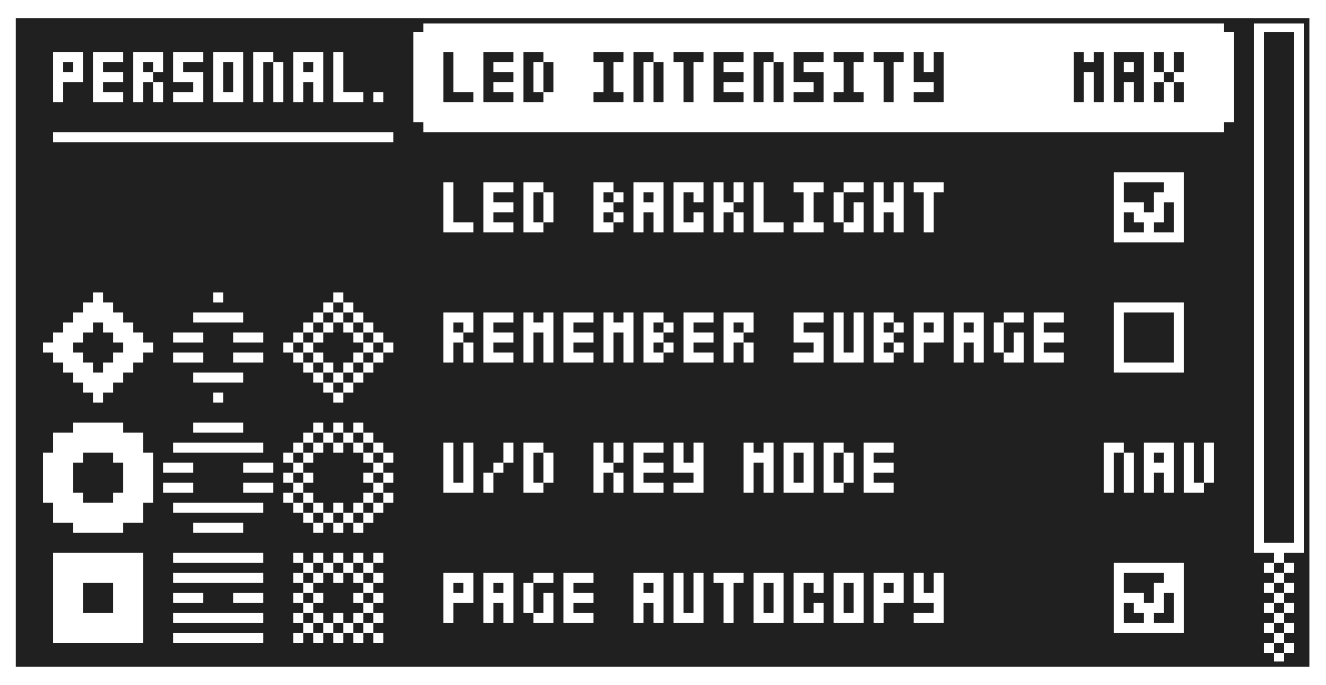
Here you can customize a number of settings to fit you personal preferences.
13.7.1 LED INTENSITY
Sets the brightness of the key LEDs and screen. Use the [LEFT]/[RIGHT] keys to change the setting.
13.7.2 LED BACKLIGHT
Switches the key LEDs backlight on/off.
Press and hold [SETTINGS] for a second and then press [TRIG 1–3] to set the intensity of the key LEDs and screen. Press and hold [SETTINGS] for a second and then press [TRIG 9] to toggle the key LEDs backlight on/off.
13.7.3 REMEMBER SUBPAGE
Will, when selected, remember which PARAMETER page’s subpage you last used and access this page again the next time you press the same [PARAMETER] key. Press [YES] to toggle ON or OFF).
13.7.4 U/D KEY MODE
Sets the functionality of the [UP]/[DOWN] keys. When set to KB OCT and you are in KEYBOARD mode, the keys shift keyboard octave up/down. When you are not in KEYBOARD mode, then keys navigates between parameter group pages. When set to NAV, the keys only navigate between parameter pages.
13.7.5 PAGE AUTOCOPY
Will, when set to on, automatically copy already placed trigs when extending the length of a pattern. If a pattern consists of for example two pages and the pattern length is increased to four pages, the two additional pattern pages are then copies of the first two pattern pages. For more information, please see “10.11 PAGE SETUP MENU” on page 48.
13.7.6 NOTE PARAM
Sets the interaction behavior for the NOTE parameter on the TRIG PARAMETERS page.
CHRO: Turning DATA ENTRY knob A changes the parameter in chromatic steps. Pressing and turning DATA ENTRY knob A changes the parameter in steps that follows the set scale.
SCALE: Turning DATA ENTRY knob A changes the parameter in steps that follows the set scale. Pressing and turning DATA ENTRY knob A changes the parameter in chromatic steps. For more information, please see “8.5.2 KEYBOARD SETUP MENU” on page 25 and “11.2 TRIG PAGE 1” on page 57.
13.7.7 LIVE REC OVERDUB
When checked, allow you to add notes and locks in LIVE RECORDING mode to already placed trigs instead of replacing them.
13.7.8 PARAM LIVE REC
This option lets you select whether parameter locks recorded in LIVE RECORDING mode will be added to all sequencer steps or only to steps that already contain a trig.
13.7.9 TRK SELECT
This option lets you decide what happens when you press a trig key (when not in a recording mode) to change tracks.
NORMAL Tracks are selected when pressing a [TRIG] key and plays a sound.
SILENT Tracks are selected when pressing a [TRIG] key but does not play a sound.
MANUAL Tracks are not selected when pressing a [TRIG] key but plays a sound.
INVERTED Tracks are selected when pressing a [TRIG] key but does not play a sound. However [TRK]+[TRIG] plays the track’s sound without selecting the track.
In NORMAL, SILENT, and MANUAL, [TRK]+[TRIG] selects the track without playing a sound.
13.7.10 NOTE PREVIEW
This option lets you decide if a Note added using the Note editor is played and heard or not.
ALWAYS Notes are always played when added
PAUSED Notes are only played when the sequencer is paused/stopped (they are not heard when the sequencer is running)
NEVER Notes are never played when added.
13.7.11 NOTE EDIT MENU
This option lets you decide how you access the NOTE EDIT menu.
ANY You can always acces the NOTE EDIT menu by pressing [NOTE EDIT].
REC You need to press [RECORD] and then press [NOTE EDIT] to access the NOTE EDIT menu.
This option is useful if you dont want to accidentally open the NOTE EDIT menu when you use the [TRIG] key to manually play notes and beats.