8.6 THE SOUND MENU
8. PATTERNS AND SOUNDS > 8.6 THE SOUND MENU · PDF 第 30–36 · OS 1.42
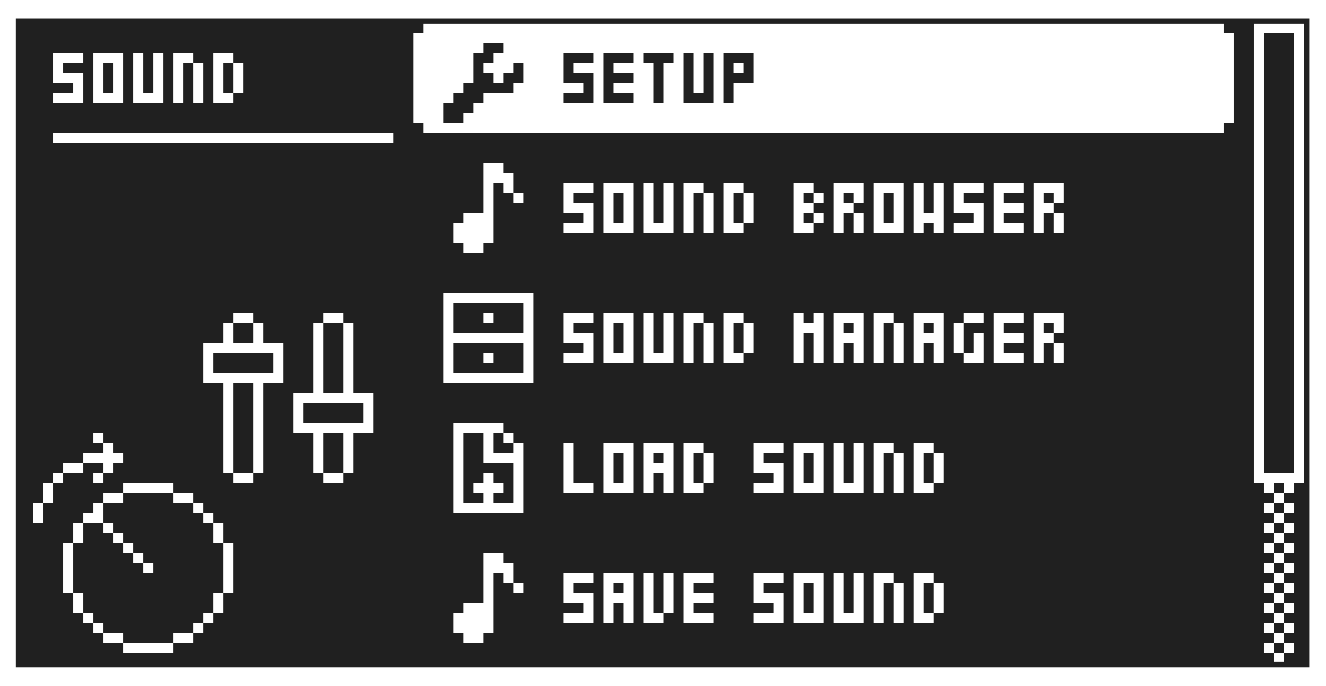
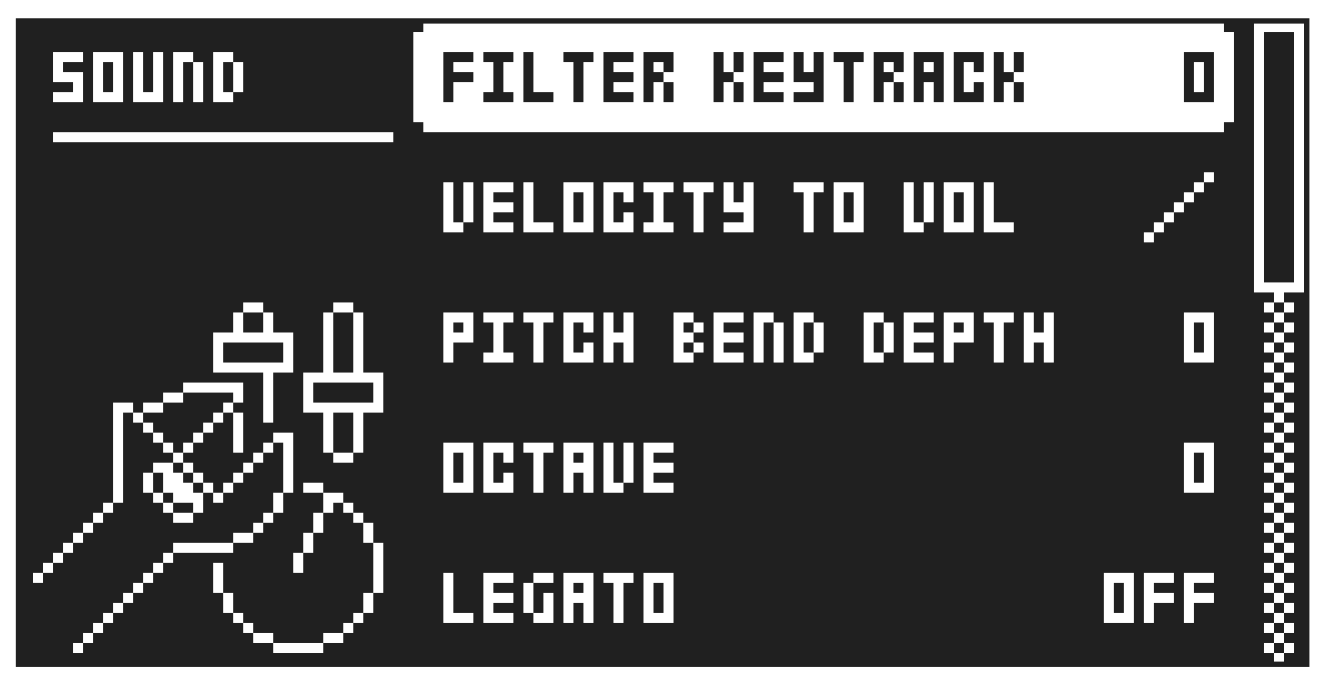
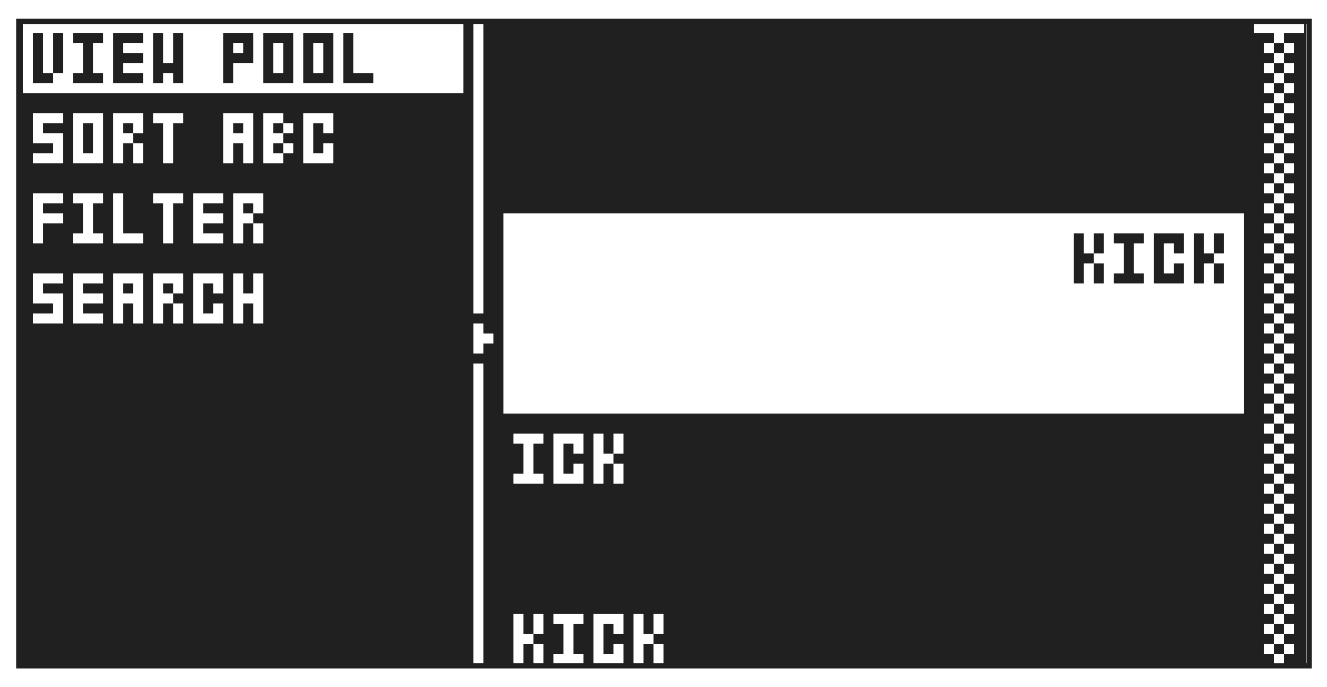
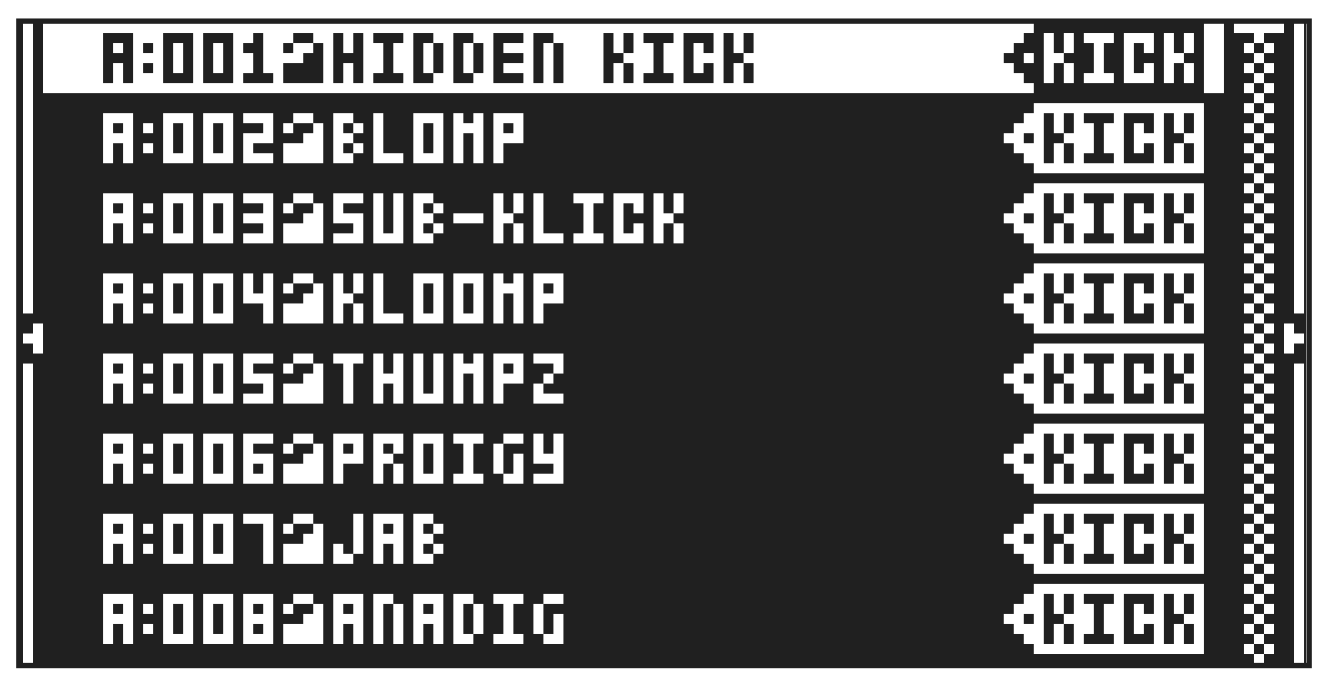
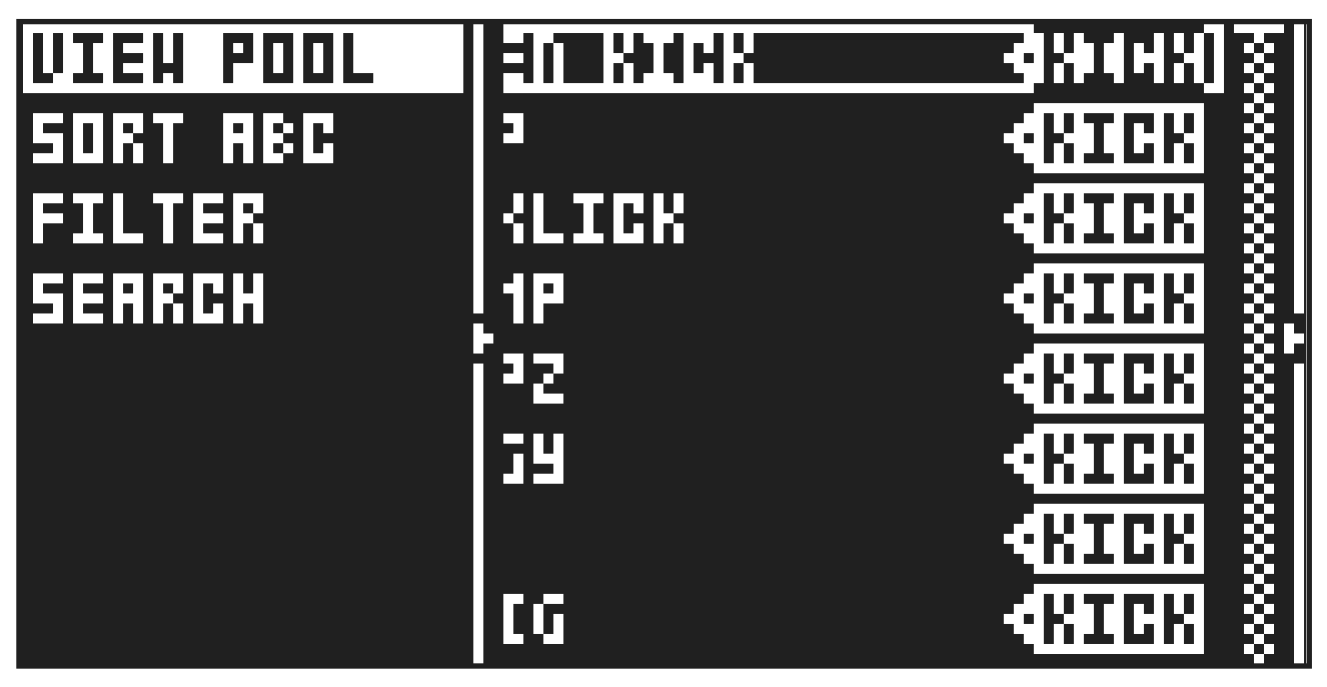
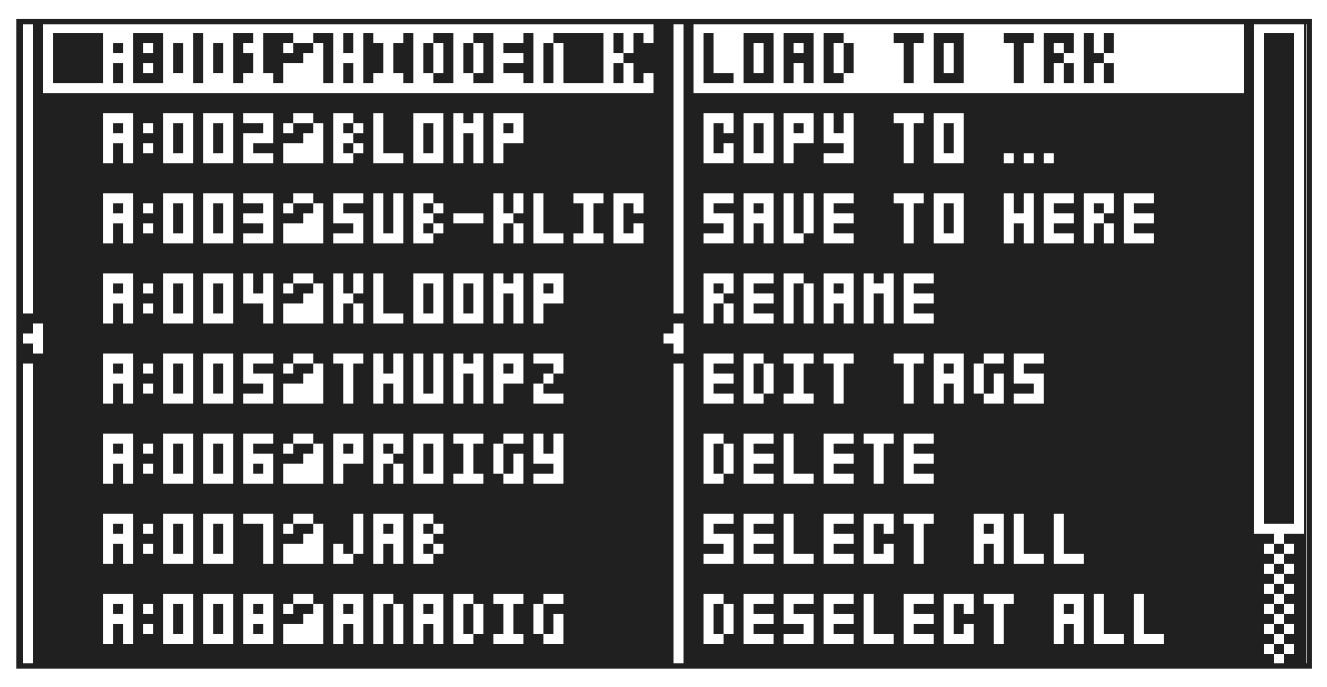
Press [FUNC] + [SONG MODE] to open the SOUND menu. Here you can set a number of Sound related parameters. Use the [UP] and [DOWN] arrow keys to move between the options. Press [YES] to confirm your selection. Press [NO] to exit the menu.
8.6.1 SETUP
Here you can set a number of Sound related parameters. Use the [UP] and [DOWN] arrow keys to move between the options. Press [YES] to confirm your selection. Press [NO] to exit the menu.
FILTER KEYTRACK
Sets how much the filter opens and closes in relation to what note is played.
VELOCITY TO VOL
Selects how MIDI velocity affects volume when playing the sound from a MIDI keyboard.
OFF means velocity does not affect the volume of the sound.
LOG applies a logarithmic velocity curve. The volume difference are greater between softer keyboard presses than between harder.
LIN applies a linear velocity curve. The volume difference between keyboard presses corresponds linearly to the force applied.
EXP applies an exponential velocity curve. The volume difference are greater between harder keyboard presses than between softer.
PITCH BEND DEPTH
Sets how much the pitch bend data from external MIDI devices affects the Syntakt.
OCTAVE
Sets the base octave of the sound. It also makes sound locking more practical since you can control the octave setting on the sound and minimize the need to transpose the sequencer notes to make two or more sounds work together.
LEGATO
In LEGATO mode, the envelopes are not triggered by a subsequent note on/key press if the first note is still held.
NOTE PRIORITY
Here you can set the note priority, i.e., what note is played if more than one note is played at the same time. This setting is only available If LEGATO is set to ON.
LAST gives priority to the last note played.
LOW gives priority to the lowest note played.
HIGH gives priority to the highest note played.
PORTAMENTO
Here you find settings related to the portamento. For more information, please see “10.2 TRIG PARAMETERS PAGE 1” on page 50.
SLOPE
CONSTANT RATE. The pitch glides linearly at a constant rate. Longer glides take longer time to complete.
CONSTANT TIME The pitch glides linearly, but the glide is completed in a specific time, regardless of the interval between the start and end notes. Glides over wider note intervals, therefore, have a higher rate.
AMOUNT
This setting enables partial glides where just the final part of the interval is included in the glide. For example, a setting of 100 gives a full glide from start to finish. Lower values start the glide closer to the goal pitch. With polyphonic portamento on chords, this results in a shorter and less messy glide.
STYLE
GLIDE Ordinary continuous portamento.
GLISSANDO Quantizes the portamento to semitones.
LEGATO ONLY
ON When playing notes, the pitch glides from the pitch of the last note played and held (the key pressed down and not yet released) to the pitch of the next new note played on the track.
OFF When you play notes, the pitch glides from the pitch of the last note played to the next new note played on the track.
- GATING
OFF The glide continues after the key is released.
ON The glide stops when the key is released.
KEY TRACKING
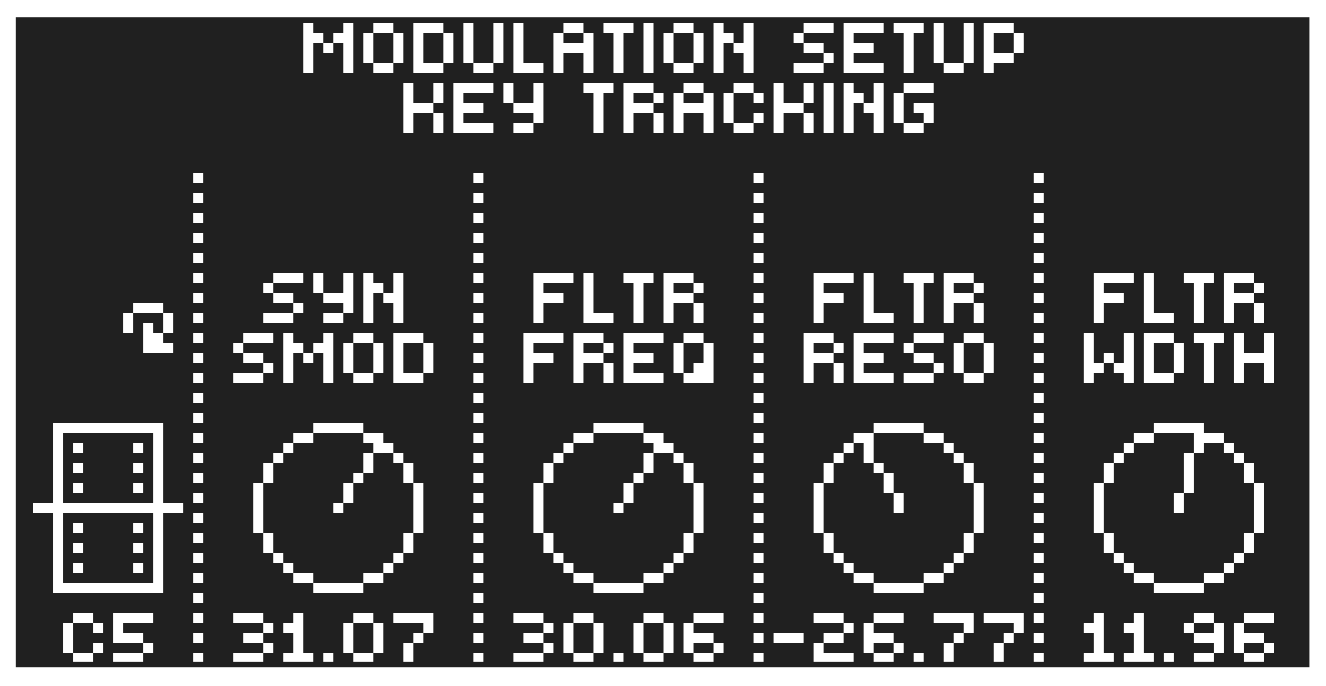
Opens a menu where you can assign up to four parameters to the key tracking. Both the NOTE parameter on the TRIG menu and the note information from incoming MIDI sent to the Syntakt from external devices affects the assigned parameters. Press [YES] to open the menu.
You can select parameters from the SYN, FLTR, AMP, and LFO PARAMETER pages. Turn the DATA ENTRY knobs A–D to select the track parameters that you wish to assign. Press [YES] to confirm the selection. Then use DATA ENTRY knobs E–H to set the modulation depth of the four track parameters. The depth is an offset of the original track parameter value. Turn LEVEL/DATA to test your settings.
For key tracking, all modulation are centered around middle C (C5). A positive modulation value increases the parameter value when playing above C5 and decreases when you play a key below C5. A negative modulation value inverts this behavior.
For example: With a modulation value set to 8, each consecutive note changes the parameter value by 1. With a modulation value set to 127, each consecutive note changes the parameter value by 16, meaning that you reach the full parameter rage in 8 notes PITCH BEND
Opens a menu where you can assign up to four PARAMETER page parameters to the pitch bend. The pitch bend from incoming MIDI sent to the Syntakt from external devices affects the assigned parameters. Press [YES] to open the menu. Selecting parameters and setting modulation depth works in the same way as for KEY TRACKING.
VELOCITY MOD
Opens a menu where you can assign up to four PARAMETER page parameters to the velocity parameter. Both the VEL parameter on the TRIG menu and the velocity of incoming MIDI notes sent to the Syntakt from external devices affects the assigned parameters. Press [YES] to open the menu.
Selecting parameters and setting modulation depth works in the same way as for KEY TRACKING.
Turn LEVEL/DATA to test your settings.
MOD WHEEL
Opens a menu where you can assign up to four PARAMETER page parameters to the MIDI mod wheel command (CC #1). Press [YES] to open the menu. Selecting parameters and setting modulation depth works in the same way as for KEY TRACKING.
Turn LEVEL/DATA to test your settings.
BREATH CONTROLLER
Opens a menu where you can assign up to four PARAMETER page parameters to the MIDI breath controller command (CC #2). Press [YES] to open the menu. Selecting parameters and setting modulation depth works in the same way as for KEY TRACKING. Turn LEVEL/DATA to test your settings.
AFTERTOUCH
Opens a menu where you can assign up to four PARAMETER page parameters to the MIDI aftertouch command. Press [YES] to open the menu. Selecting parameters and setting modulation depth works in the same way as for KEY TRACKING.
Turn LEVEL/DATA to test your settings.
8.6.2 SOUND BROWSER
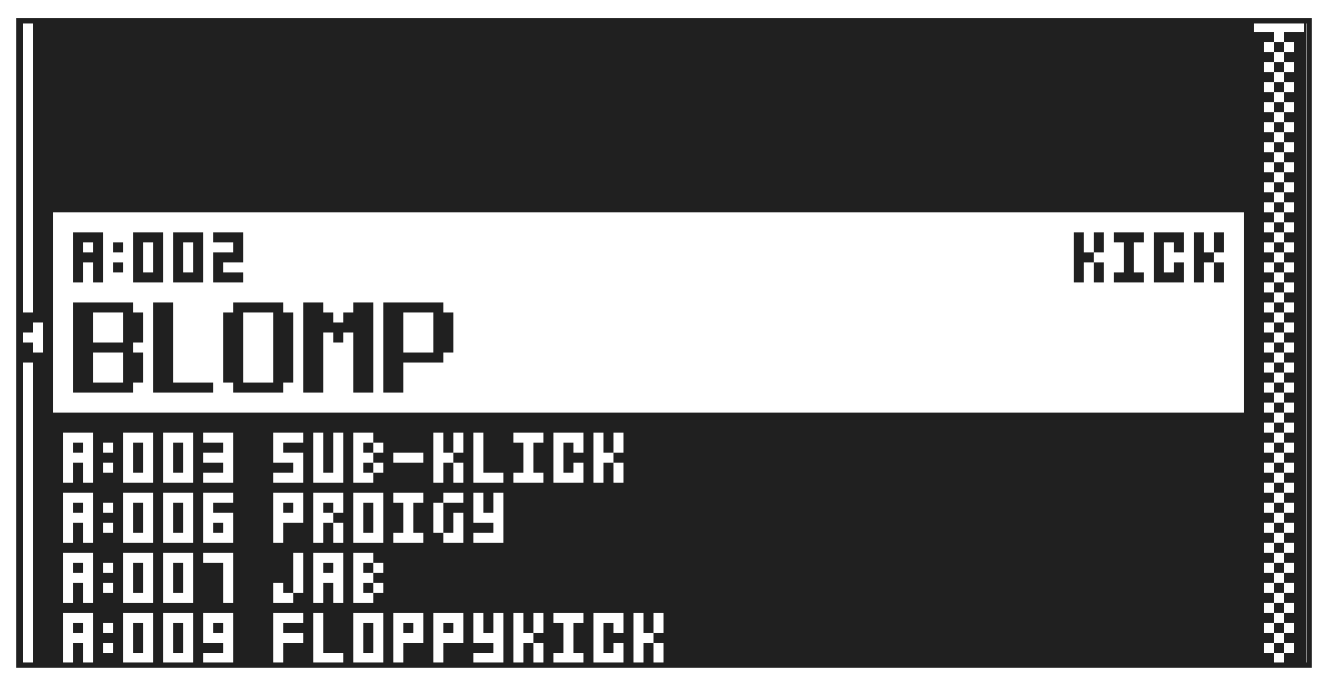
The SOUND BROWSER is used to preview and load sounds. You can also press [FUNC] + LEVEL/DATA to open the SOUND BROWSER. This menu will show a list of all sounds in the +Drive sound library that can be loaded to the active track. Scroll the list by turning the LEVEL/DATA knob or by pressing [UP]/ [DOWN]. Press [TRIG 9–16] to select sound bank A–H. Press [FUNC] + [YES] to preview the sound before you load it to the track. You can also use KEYBOARD mode, or an external MIDI controller, sending MIDI on the Syntakt’s Auto channel to preview the sound. Press [YES] to load the sound to the track. Press [LEFT] to access the SORTING menu. Press [YES] to execute the commands. Press [NO] or the [RIGHT] arrow key to exit the menu.
VIEW POOL lists sounds available in the Sound pool of the active project. The command is only available when you browse the +Drive sound library.
VIEW +DRIVE lists sounds available on the +Drive sound library. The command is only available when you browse the Sound pool of the active project.
SORT ABC sorts the sounds in alphabetical order. The command is only available when sounds are sorted by slot number.
SORT 123 sorts the sounds by slot number. The command is only available when sounds are sorted alphabetically.
FILTER opens a list where sounds can be arranged according to tags. Select and deselect tags by pressing [YES]. Multiple tags can be selected. Exit the tag list by pressing [NO].
SEARCH will perform a text search and list all sounds with names matching or including the text input. For more information, please see “7.8 THE NAMING SCREEN” on page 24 on how to enter text.
8.6.3 SOUND MANAGER
The SOUND MANAGER is used to manage sounds, for example import, export, rename, and tag sounds.
Opening this menu will show a list of all sounds found in the +Drive sound library. Turn the LEVEL/DATA knob or press [UP]/[DOWN] to scroll through the list. Press [BANK] and then press [TRIG 9–16] to select sound bank A–H. Press [FUNC] + [YES] to preview the sound before you load it to the track. You can also use KEYBOARD mode, or an external MIDI controller, sending MIDI on the Syntakt’s Auto channel to preview the sound. Press [LEFT] to access the SORTING menu. Press [YES] to execute the commands. Press [NO] or the [RIGHT] arrow key to exit the menu.
VIEW POOL lists sounds available in the Sound pool of the active project. The command is only available when you browse the +Drive sound library.
VIEW +DRIVE lists sounds available on the +Drive sound library. The command is only available when you browse the Sound pool of the active project.
SORT ABC sorts the sounds in alphabetical order. The command is only available when sounds are being sorted by slot number.
FILTER opens a list where sounds can be arranged according to tags. Select and deselect tags by pressing [YES]. You can select multiple tags. Exit the tag list by pressing [NO].
SEARCH will perform a text search and list all sounds with names matching or including the text input. For more information, please see “7.8 THE NAMING SCREEN” on page 24 on how to enter text.
Press [RIGHT] to access the SOUND OPERATIONS menu. The available operations will affect the highlighted sound. Press [YES] to apply the commands to the selected sound. Press [NO] or the [LEFT] arrow key to exit the menu.
LOAD TO TRACK loads the selected sound to the active track and makes it a part of the active pattern.
COPY TO... Copies the selected sounds to one of the following:
- SOUND POOL copies the selected sounds to the first free slots of the Sound pool.
- +DRIVE copies the selected sounds to the first free slots of the +Drive sound library.
- +BANK (A-H) copies the selected sounds to the first free slots of a specific bank inside the +Drive.
SAVE TO HERE exports the active track sound and saves it to the selected slot.
RENAME Opens a screen where you can rename the selected sound.
EDIT TAGS opens a menu where sounds can be tagged. sounds can have any number of tags, but only the first two will show on the sound list. Press [YES] to apply or remove tags. Highlight <SAVE> and press [YES] to save
DELETE deletes the sound or selected sounds.
SELECT ALL selects all sounds in the list.
DESELECT ALL deselects all sounds in the list.
TOGGLE enables or disables write protection for the selected sounds. When a sound is write protected it cannot be overwritten, renamed, tagged or deleted. A write protected sound has a padlock symbol next to its name. The command is only available when you browse the +Drive sound library.
SEND SYSEX sends the selected sounds as SysEx data.
- Sounds in the +Drive sound library are organized into eight banks, ranging from A to H. Each bank can contain 256 sounds. Use the [TRIG A–H] keys to view only sounds located in a specific bank.
- You can preview the currently selected sound by pressing [FUNC] + [YES]. All sounds available for the active track can be previewed. Please note that if the previewed sound is sent to the effects, the current effects settings will affect it.
- Several sounds can be simultaneously affected by the commands available in the SOUND OPERATIONS menu. Select/deselect individual sounds by highlighting them and pressing [YES].
- Press [FUNC] + [UP]/[DOWN] for faster scrolling in the sound list.
8.6.4 LOAD SOUND
Loads (copies) a sound from the +Drive to the active pattern. Turn the LEVEL/DATA knob or press [UP]/ [DOWN] to scroll through the list. Press [YES] to select a sound and then press [TRACK 1–8] to select the track to where you want to assign the sound.
8.6.5 SAVE SOUND
Saves the active track’s sound to the +Drive. Turn the LEVEL/DATA knob or press [UP]/[DOWN] to choose a destination memory slot. Press [YES] to export the sound. Name the sound and press [YES] again to confirm the export.
8.6.7 RENAME TRACK SOUND
Opens the NAMING menu where you can rename the active track’s sound.
8.6.8 INIT TRACK SOUND
Sets the PARAMETER page parameters of the active track to their default values. When selecting this option, a prompt will appear. Press [YES] to initialize the parameters or [NO] to cancel the operation. Note that no saved parameter information are permanently lost until the sound is saved to the same slot it was loaded from.