9.1 THE FILE MENU
9. PATTERNS, PRESETS, AND INSTRUMENTS > 9.1 THE FILE MENU · PDF 第 33–36 · OS 1.4.1
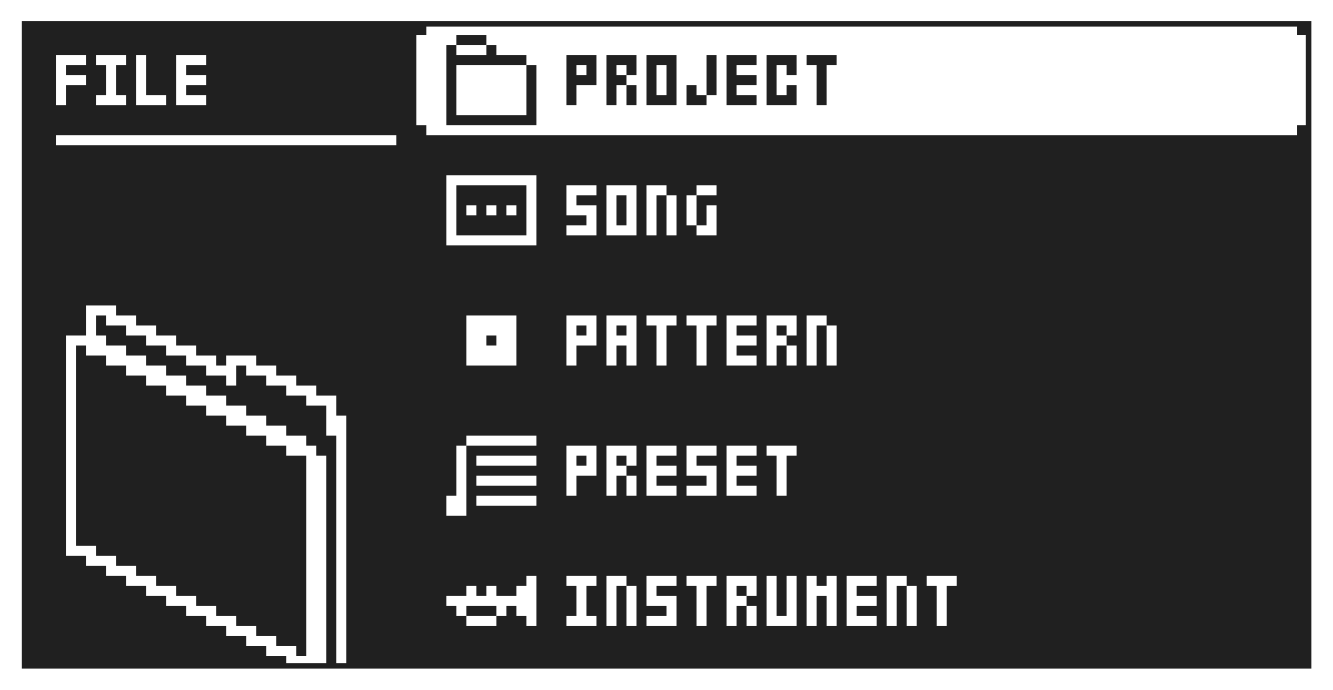
Press [FUNC] + [PRESET] to open the FILE menu. Here you manage projects, songs, patterns, and presets. Use the [ARROW] keys and LEVEL/DATA to navigate the menu. Press [YES] to select a menu item. Press [NO] to exit the menu.
9.1.1 PROJECT
This is where you can load, create, and save projects.
LOAD
Use [UP]/[DOWN] to select the project you want to load, and then press [YES].
If you load a new project, it will replace the active project. Be sure to save your active project before you load another project.
PROJECT ACTIONS
Use [UP]/[DOWN] to select the project you want to interact with. Then press [RIGHT] to bring up a list of commands. Press [NO] or [LEFT] to exit the list.
- LOAD Loads the selected project. This option is only available if the selected slot is not the same as the current project’s slot.
- RELOAD Reloads the current project from its last saved state. This option is only available if the selected slot is the same as the current project’s slot.
- SAVE Saves the current project to the selected project slot. This option is only available if the selected slot is the same as the current project’s slot. You can also press [FUNC] + [SETTINGS] to directly save the current project to its own slot.
- SAVE TO Saves the current project to the selected project slot. When selecting this option, you are asked if you want to overwrite the selected project or not. This option is only available if the selected slot is not the same as the current project’s slot.
- RENAME Opens a NAMING screen where you can rename the project file.
SAVE
Saves the current project. You can also press [FUNC] + [SETTINGS] to directly save the current project to its own slot.
SAVE AS
This option lets you save the current project under a new name and to a new slot.
Projects are saved on Tonverk’s SD card in the USER/PROJECTS folder.
NEW
Select this option to create a new project. If you have not saved the project you are currently working on, you will be prompted to save it..
If you create a new project, it will replace the active project. Be sure to save your active project before you load another project.
9.1.2 SONG
Here you can rename and clear the currently selected song. These options are only available if you are in SONG mode and have selected a song.
RENAME Opens a NAMING screen where you can rename the song.
CLEAR Clears the song.
9.1.3 PATTERN
Here you can rename and clear the currently selected pattern.
RENAME Opens a NAMING screen where you can rename the pattern.
CLEAR Clears the pattern.
- WHOLE PATTERN Clears the active pattern’s sequencer data and kit data. A prompt appears when you select this option. Press [YES] to clear, or [NO] to cancel the operation. Note that no pattern information will be permanently lost until the pattern is saved to the same pattern slot from which it was loaded.
- KIT DATA Clears the active pattern’s kit. This option clears all preset data for tracks 1–8. All sequencer data will remain unchanged. A prompt appears when you select this option. Press [YES] to clear, or [NO] to cancel the operation. Note that no kit information is permanently lost until the pattern is saved to the same pattern slot from which it was loaded.
- SEQUENCE DATA Clears the active pattern’s sequence data. All presets will remain unchanged.
A prompt appears when you select this option. Press [YES] to clear, or [NO] to cancel the operation. Note that no sequencer information is permanently lost until the pattern is saved to the same pattern slot from which it was loaded.
9.1.4 PRESET
Here you can load, save and manage presets.
LOAD
Use this option to load a preset to the active track. You can also press [PRESET] to access this menu item directly.
- Press [FUNC] + [TRIG 1–8] to select the track you want to load the preset to.
- Use [LEFT/RIGHT] to highlight a preset category, and then use [UP/DOWN] or LEVEL/DATA to select preset.
- Press [YES] to load the preset to the active track.
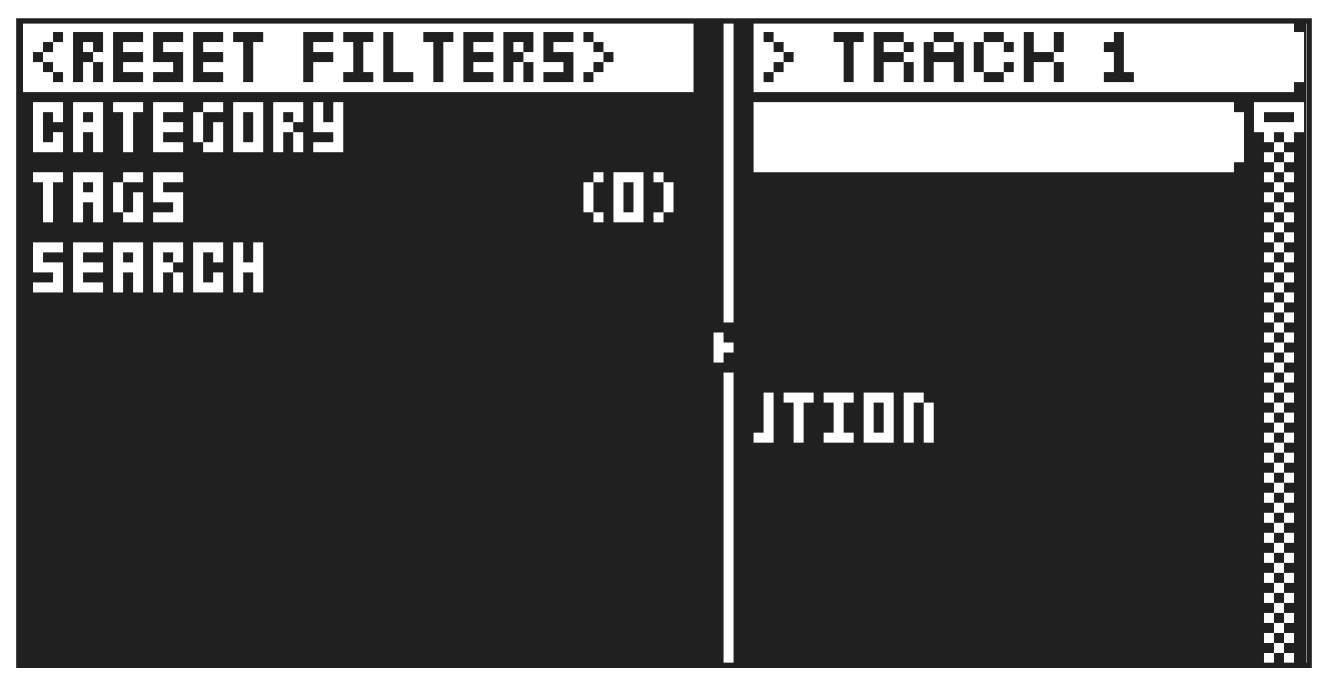
Press [LEFT] to open the SORTING menu, where you can filter and view presets by category, tags, or text search. These different filters can be combined. Press [YES] to execute the commands. Press [NO] or the [RIGHT] arrow key to exit the menu.
<RESET FILTERS> clears all filter settings and shows all presets.
CATEGORY lets you filter and view presets based on the two main categories DRUMS and KEYS.
TAGS lets you filter and view presets based on their tags. Press [YES] to select or deselect a tag.
You can select multiple tags. Press [NO] to exit the tag list.
SEARCH performs a text search and lists all presets whose names match or include the text you enter. Press [FUNC] + [NO] to clear search. For more information, please see “6.7 THE NAMING SCREEN” on page 23.
SAVE
Use this option to save a previously loaded preset. Press [YES] to save the preset.
If you use the SAVE option and attempt to save a preset that you have not previously saved, you will be prompted to provide a name for the preset and add tags before saving it.
SAVE AS
Use this option to save the active track’s sound as a preset and give it a name.
- Press [YES] to initiate the saving process and open a NAMING screen.
- On the NAMING screen, name your preset and then press [YES]. For more information, please see “6.7 THE NAMING SCREEN” on page 23.
- On the TAG screen, you can add tags to the preset. The DRUMS and KEYS tags are main categories and are used in the LOAD PRESET menu. Press [YES] to apply or remove tags. Highlight <SAVE> and press [YES] to save.
Presets are saved on Tonverk’s SD card in the USER/PRESETS folder.
MANAGE
Opens the Preset manager menu. Here presets can be saved, loaded, renamed, tagged et cetera.
Opening this menu will show a list of all presets found on the SD card.
The available operations will affect the highlighted preset. Use [UP]/[DOWN] keys or LEVEL/DATA to select preset. Press [RIGHT] to access the PRESET OPERATIONS menu. Use the [UP]/[DOWN] to navigate the menu. Press [YES] to apply the commands to the selected preset. Press [NO] to exit the menu.
EDIT TAGS opens a menu where presets can be tagged. presets can have any number of tags.
Press [YES] to apply or remove tags. Highlight <SAVE> and press [YES] to save.
DELETE deletes the preset or selected presets.
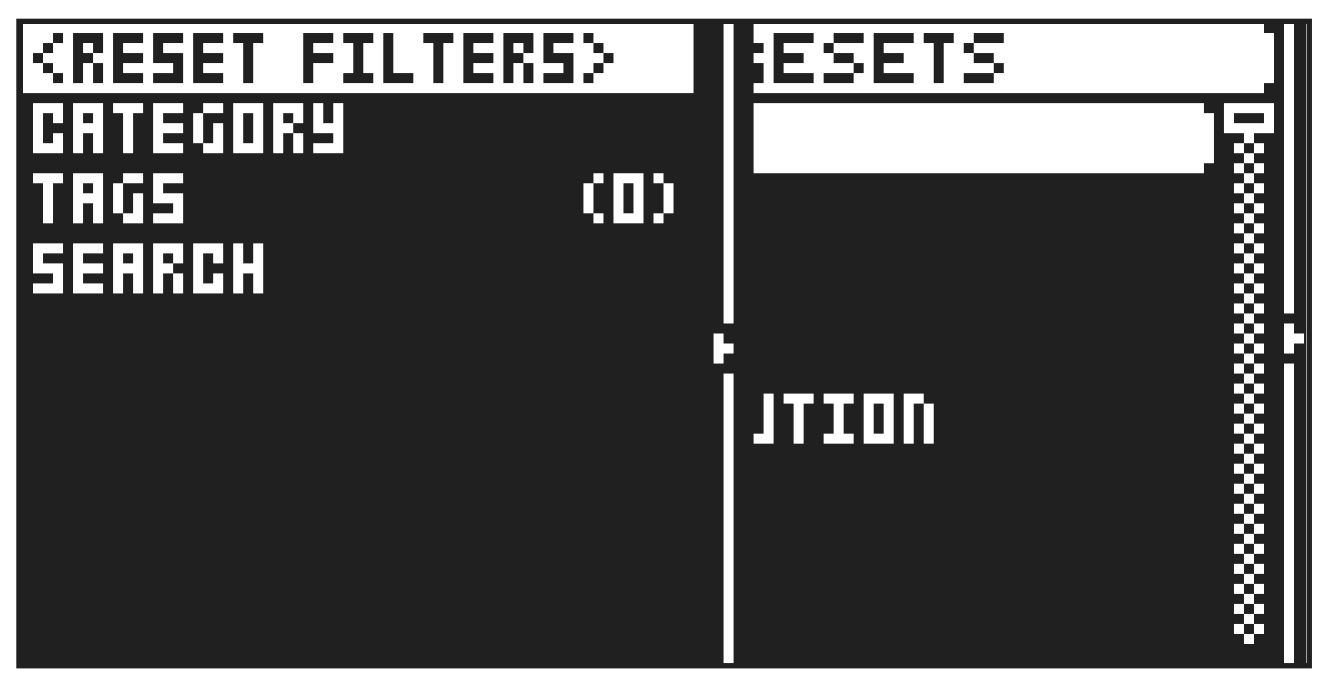
Press [LEFT] to open the SORTING menu, where you can filter and view presets by category, tags, or text search. These different filters can be combined. Press [YES] to execute the commands. Press [NO] or the [RIGHT] arrow key to exit the menu.
<RESET FILTERS> clears all filter settings and shows all presets.
CATEGORY lets you filter and view presets based on the two main categories DRUMS and KEYS.
TAGS lets you filter and view presets based on their tags. Press [YES] to select or deselect a tag.
You can select multiple tags. Press [NO] to exit the tag list.
SEARCH performs a text search and lists all presets whose names match or include the text you enter. Press [FUNC] + [NO] to clear search. For more information, please see “6.7 THE NAMING SCREEN” on page 23.
9.1.5 INSTRUMENT
Here you can rename, save and export and clear the currently selected instrument. These options are only available the current track has a SRC machine that uses instruments (Multi Player or Subtracks).
RENAME Opens a NAMING screen where you can rename the instrument for the current project.
SAVE AS
This option lets you save the current instrument under a new name and to a new slot.
EXPORT
Exports the instrument along with all the samples it contains to the SD card.